

How to Use EasyDown to
Download Video / Music on PC
*Note: This guide is for the PC version of EasyDown. If you’re using a smartphone, we recommend checking the mobile app guide .
1. Download and Install EasyDown
1.1 Download EasyDown
Get the latest version of EasyDown by clicking the download button below or visiting the official page. Using the newest release ensures the best performance.
Free Download Free Download*Note: EasyDown is desktop software available for Windows PC and Mac
1.2 Install EasyDown
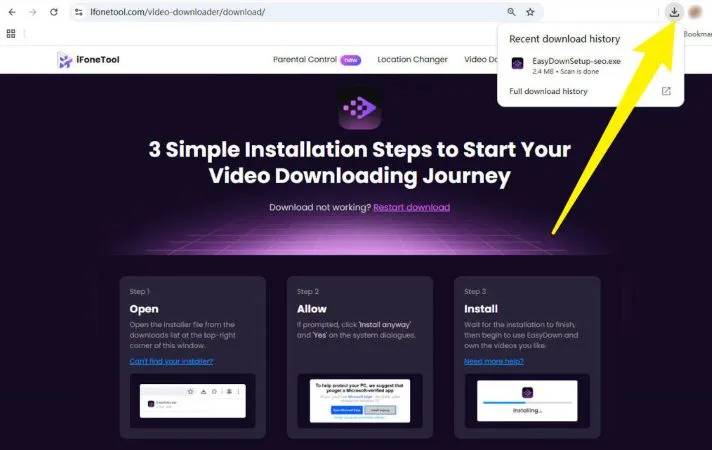
Step 1: Open your browser’s Downloads folder, locate the donwloaded file, and double-click it.
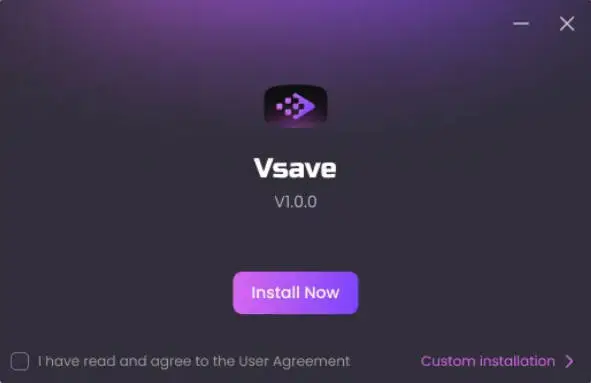
Step 2: Click Install when prompted. If you prefer, select Customize Install to choose your language and installation path.
Step 3: Wait a few minutes for the installation to complete. Once the final confirmation appears, you can launch EasyDown by double-clicking the EasyDown icon on your desktop—and you’re ready to start saving videos.
2. Active Your Product by Registration Code
*Note: If you purchased a plan of EasyDown already, please skip step 1 and go to step 2 - active directly.
2.1 Choose your plan
EasyDown offers a free trial with limited downloads. To unlock unlimited downloads and access all features, visit the purchase page, choose a plan, and click the purchase button.

2.2 Complete your order
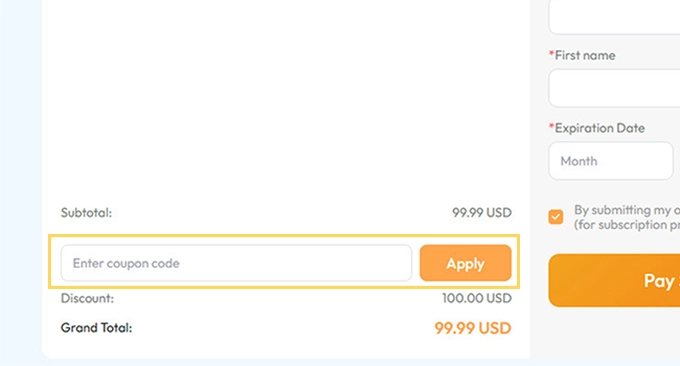
After clicking Purchase, you’ll be taken to the checkout page. Enter your email, select a payment method, provide payment details, and confirm by clicking Pay Securely Now.
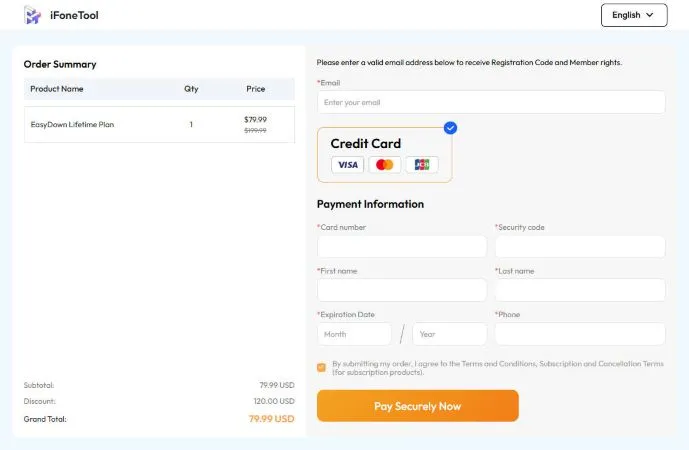
If you have a coupon code, simply enter it here and click Apply to check out at a discounted price.
2.3 Check your registration code
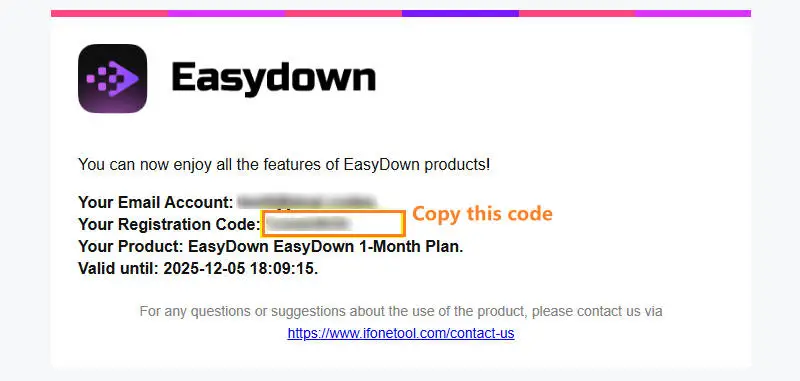
Once payment is complete, a registration code will be sent to your email. We’ll also hold special celebration events from time to time and give away free account email and registration codes. Copy the code and open EasyDown program.
2.4 Active your product
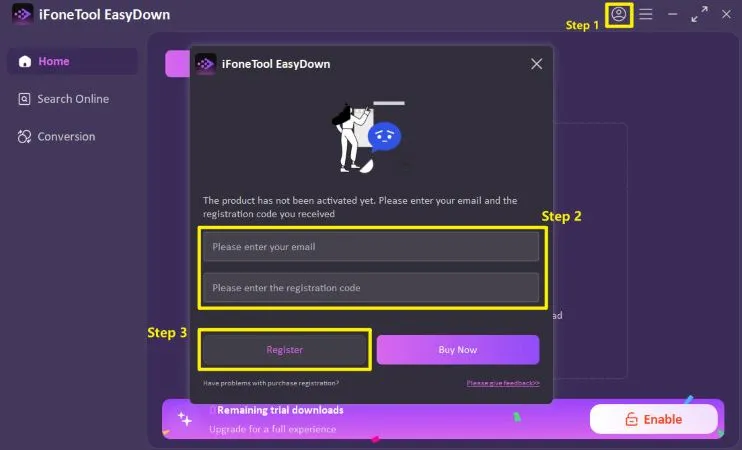
Click the Account icon, enter email and registration code, then click Register. Your account is now fully activated—enjoy unlimited downloads!
3. Download Videos/Music by Pasting a URL
3.1 Copy the link
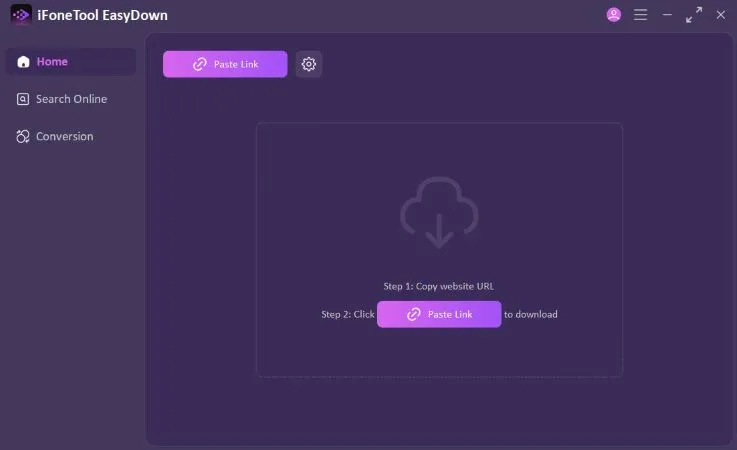
Find the content you want to download, copy its URL, and click the Paste Download button. The program will automatically detect and fetch the video and audio files.
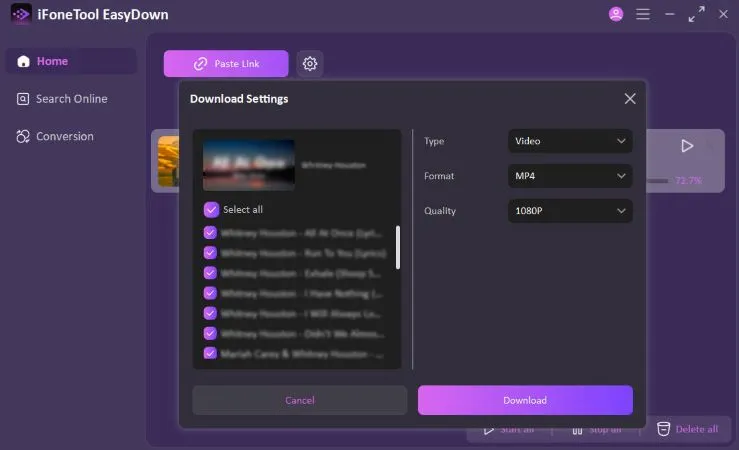
3.2 Customize your settings
Choose your preferred format, and select the quality you want. If you paste a playlist or album link, you can choose to download the entire list or only specific items. Then click Download.
3.3 Start downloading
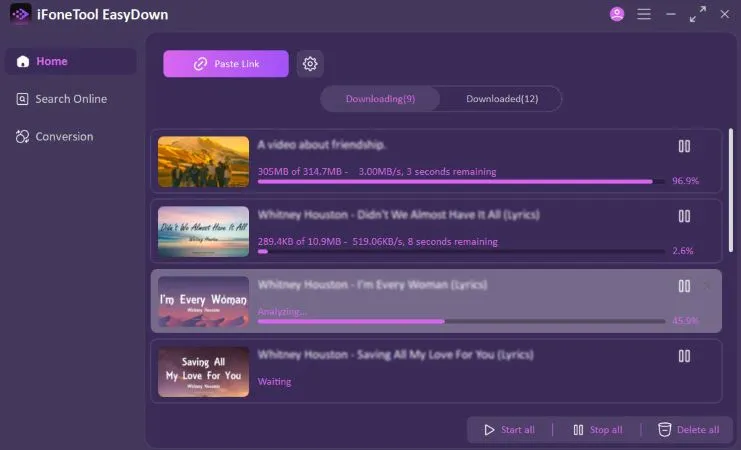
EasyDown will begin downloading at high speed. Most files only take a few minutes. You can monitor progress under the Processing tab.
3.4 Manage completed downloads
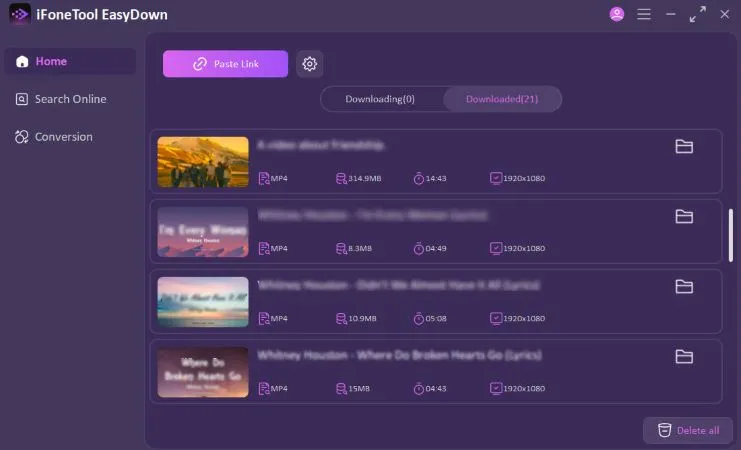
Once finished, your files will appear in the Completed tab. Hover over a file to view more options—open the folder location or delete the file with a single click.
4. Download Videos/Music with the Built-in Browser
4.1 Search online
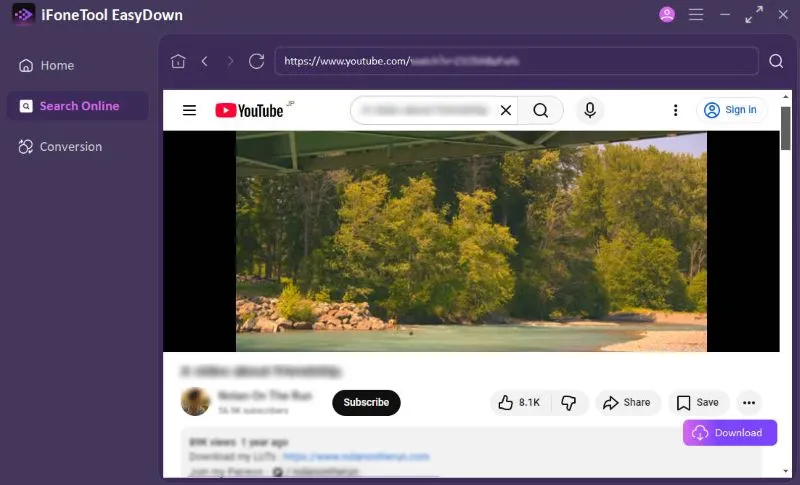
Open the Search Online tab from the left menu. Enter a website URL in the built-in browser and click the Search icon to visit it. EasyDown also offers quick shortcuts to popular platforms—just click to open them directly.
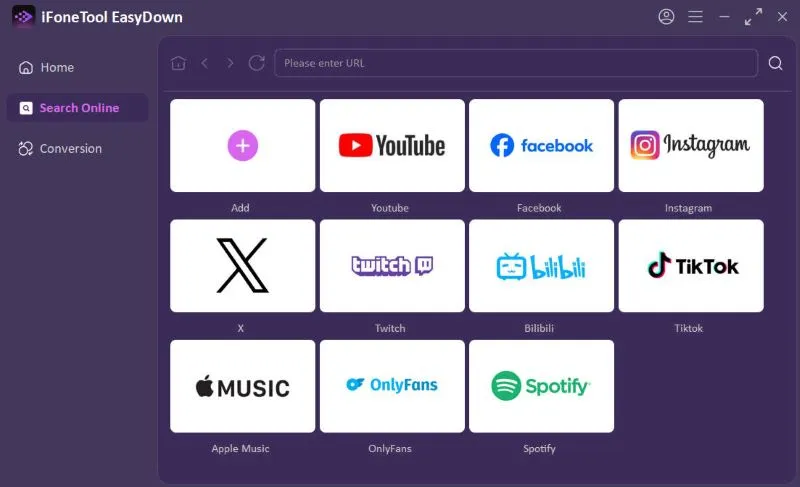
*Note: For faster navigation, use the Add New tab to save your frequently visited sites and access them with a single click.
4.2 Start downloading
Browse for the video or music you want, then click the Download button in the corner. EasyDown will capture the media from the webpage for you.
5. Convert Video and Audio Format
5.1 Upload your file
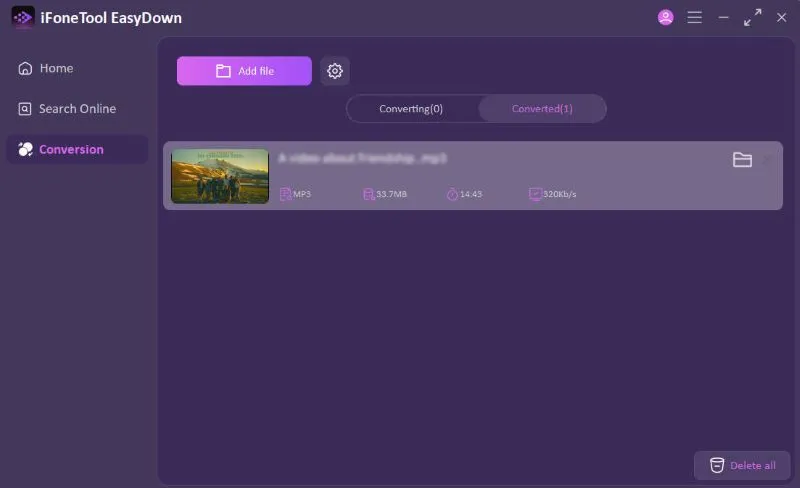
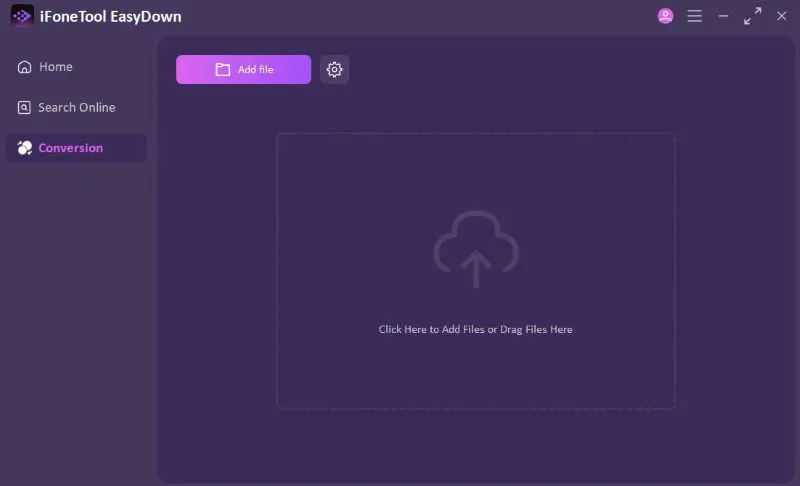
Open the Conversion tab from the left menu. Click Add File to upload the video or audio you want to convert.
5.2 Adjust Conversion Settings
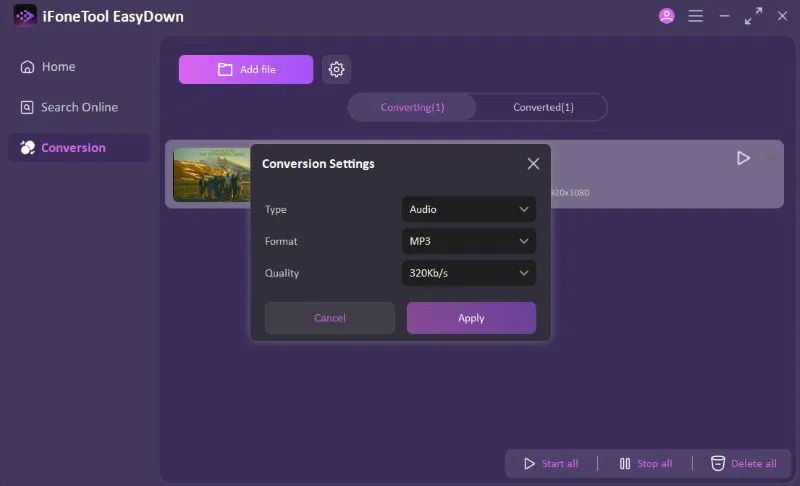
Select the output type, format, quality, and storage location. Once ready, click Apply to start the conversion.
5.3 Complete the Conversion
When the process finishes, your files will appear under the Completed tab. Hover over the file to access quick options—open the folder location or delete the file.