

How to Use EasyDown App to
Download Videos / Music
*Note: This guide is for the mobile version of EasyDown. If you’re using a computer, we recommend checking the desktop version guide.
1. Download and Install EasyDown App
1.1 Download EasyDown App
Get the latest version of EasyDown by clicking the download button below or visiting the official page. Using the newest release ensures the best performance.
 Free Download
*Note: EasyDown App is available for Android devices
1.2 Install EasyDown App
Step 1: Once the download finishes, tap the notification in your status bar, or find the EasyDown file in your browser's "Downloads" folder.
Step 2: When prompted, confirm to proceed with the installation.
Step 3: After a few seconds, the installation will be complete. Tap the "EasyDown" icon on your home screen to launch the app.
2. Download Videos/Music
2.1 Copy the link
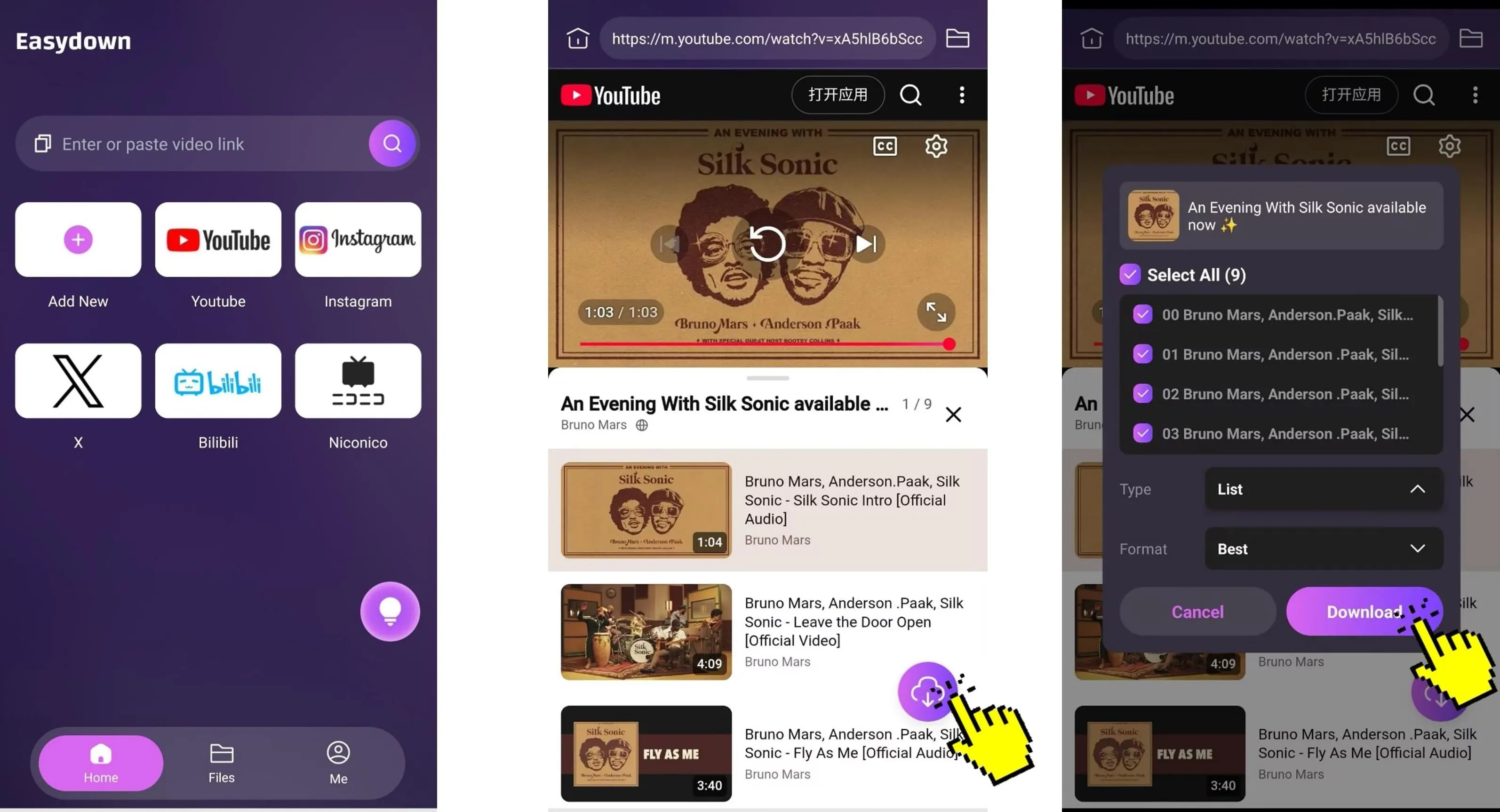
Paste a URL into the search bar or tap a site card on the Home tab. Once the website loads, tap the floating download button (bottom-right) to detect and fetch your video or audio files.
2.2 Customize your settings
Choose your preferred format, and select the quality you want. If you paste a playlist or album link, you can choose to download the entire list or only specific items. Then click Download.
*Note: Use the 'Add New' button to bookmark your frequently visited sites for one-tap access.
2.3 Start downloading
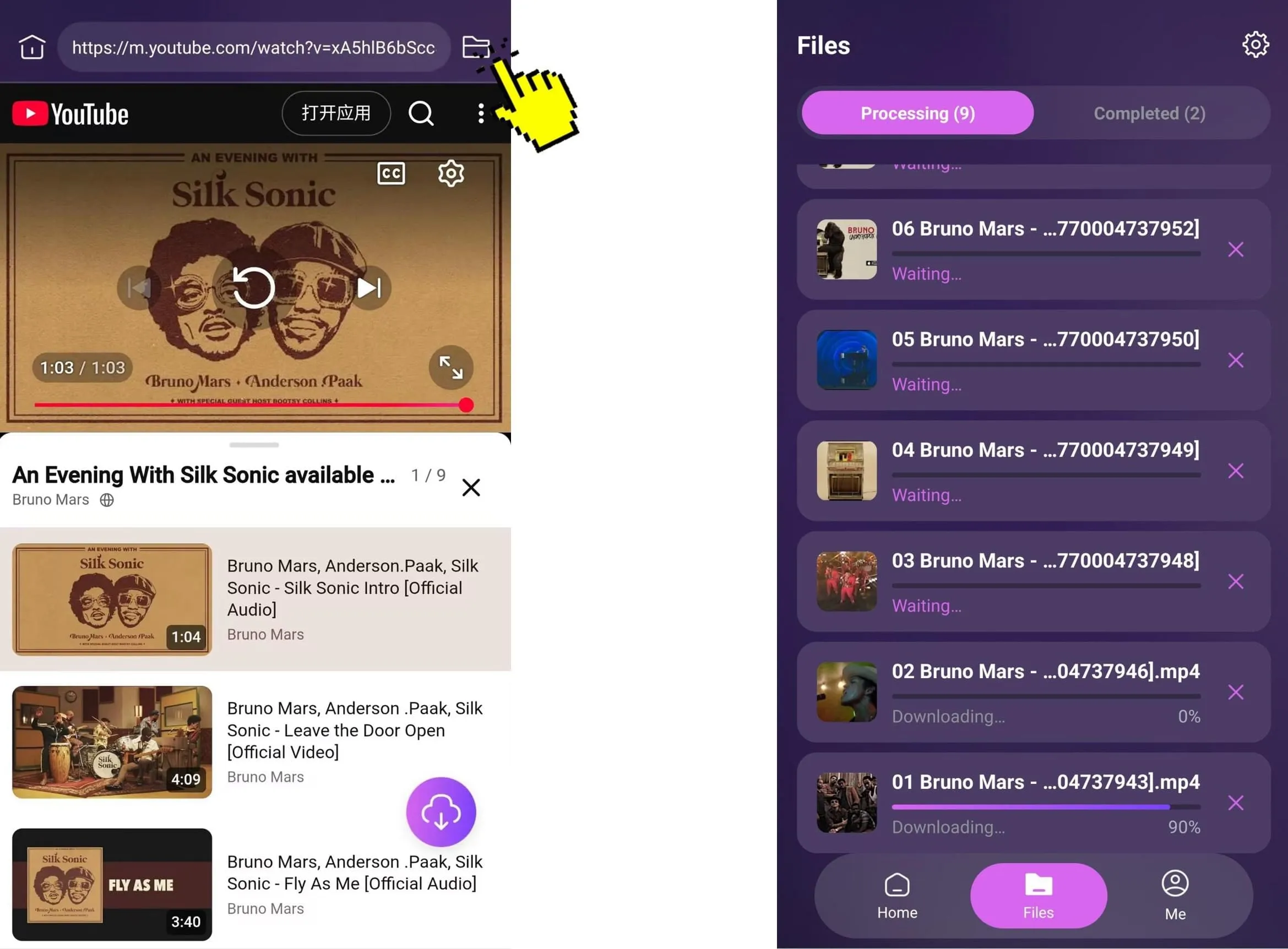
EasyDown will begin downloading at high speed. Most files only take a few minutes. You can tap the folder icon in the top-right corner to switch to the Processing tab and monitor the download progress.
2.4 Manage completed downloads
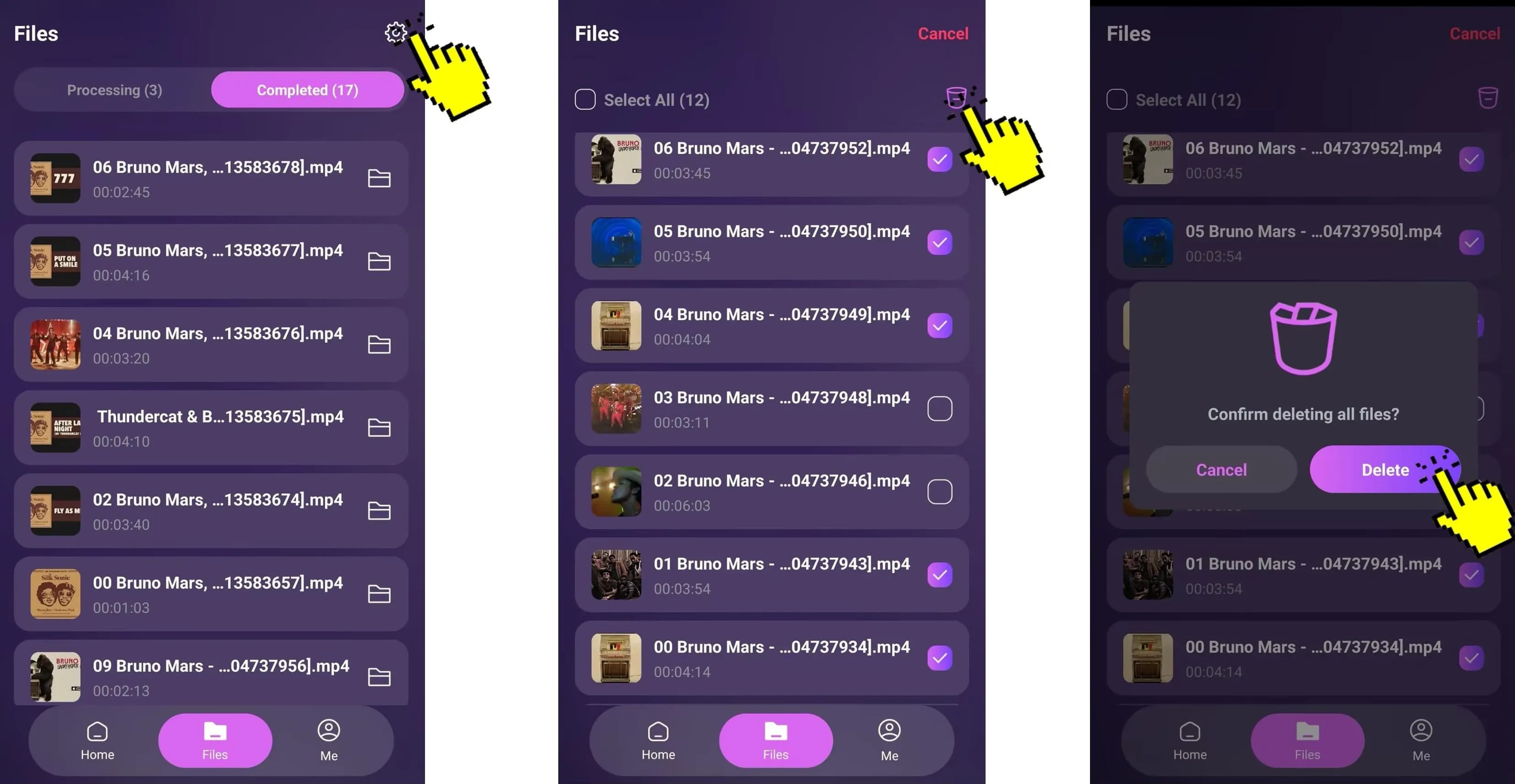
Downloads are saved in the "Completed" tab. Tap the folder icon to open the file. To delete files, tap the settings icon (top-right), select your files, and tap delete.
3. Add or Remove Favorite Sites
3.1 Add a Favorite Site
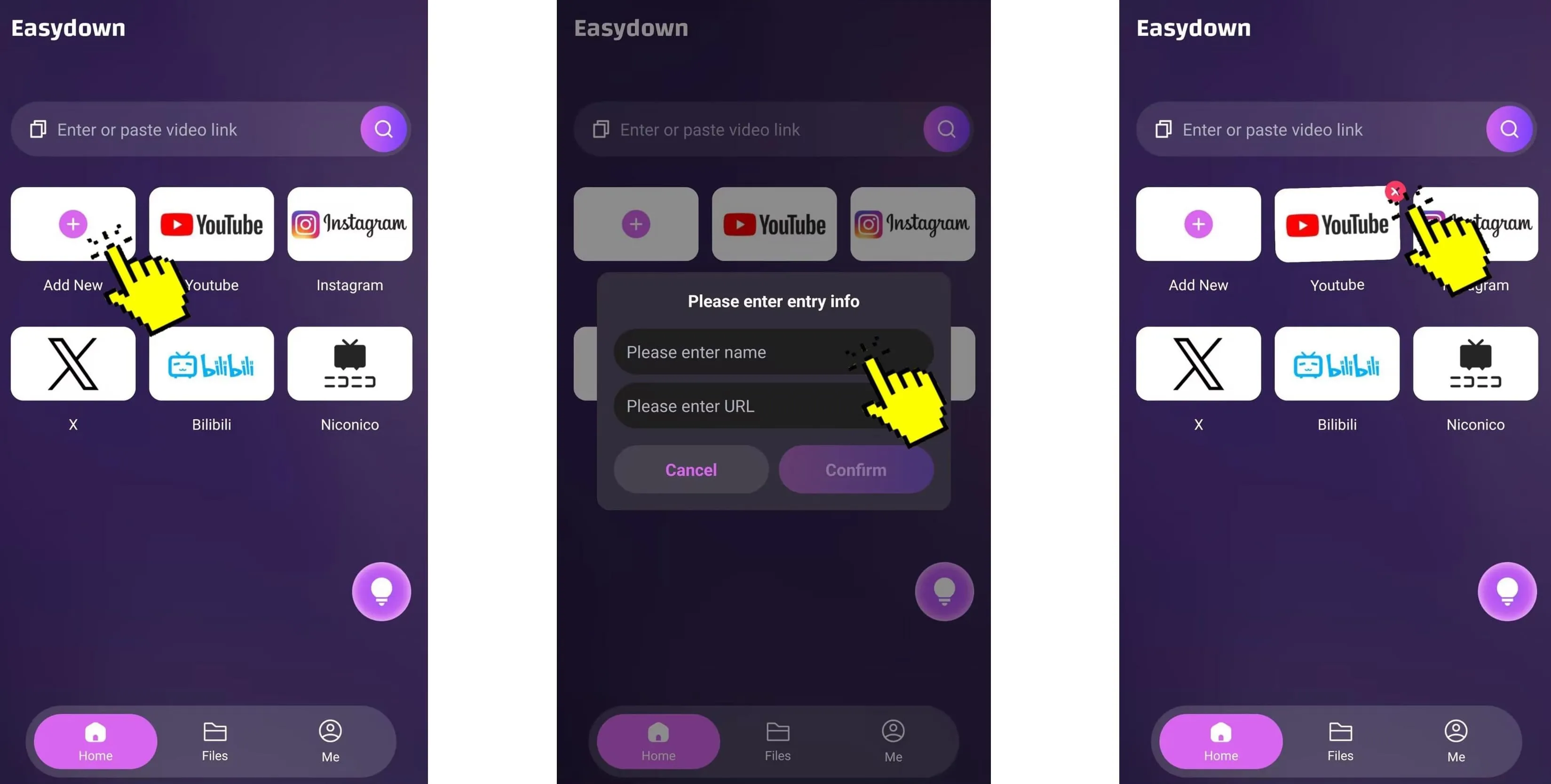
On the EasyDown app's home screen, tap "Add." Enter the title and URL of your favorite site, then tap "Confirm." The site will be added to your favorites, and you can access it directly from the home screen next time.
3.2 Remove a Favorite Site
To remove a site, press and hold its icon, then tap the “✕” icon in the top right corner. The selected site will be deleted from your favorites.