



Want to download YouTube videos in clear and universally compatible MP4 1080p? You're not alone.
Whether you're saving tutorials, movie clips, music videos, workout content, or cute cat-and-dog compilations, having the right and reliable method will save you from 90% of the usual headaches.
To help you fully understand the best ways to convert youtube to mp4 1080p, I've organized all the mainstream methods into one complete guide, so you can:
- Stop searching randomly for websites
- Stop dealing with downgraded resolution
- Stop suffering from ads and pop-ups
- Always know which tool to use and how to download the clearest video in the fastest way
Let's get started.
How to Download YouTube Videos to MP4 1080p
To save YouTube videos as MP4 1080p, there are 5 practical methods:
- Desktop software
- Browser extensions
- Online converters
- Command-line tools
- Mobile apps
We excluded "screen recording" because the success rate is too low and the quality is usually terrible. Each method has its own strengths and is suited for different types of users. Here's a quick overview to help you choose:
| Method | Recommendation Rating | Difficulty | Price | Best For |
|---|---|---|---|---|
| PC Software (EasyDown) | ⭐⭐⭐⭐⭐ | Easy | Free trial | Users who care about video quality, need batch downloads, and want a stable, ad-free experience |
| Online Tool (dlbunny) | ⭐⭐ | Very easy | Free (with ads) | Users who only download occasionally and prefer not to install software |
| Browser Extension (Addoncrop) | ⭐⭐⭐ | Medium | Free | Users who want a download button directly on the YouTube watch page and don't like switching windows |
| Command Line (yt-dlp) | ⭐⭐⭐ | Hard | Free (open-source) | Developers, power users, or those who need automated channel archiving via scripts |
| Mobile App (Vsave) | ⭐⭐⭐⭐ | Medium | Free trial | Users who download videos on mobile and need them saved directly to the iPhone or Android gallery |
Your ideal method depends on your needs. The following sections will walk you through each option step by step.
How to Download YouTube to MP4 1080p with Desktop Downloader
Best for: Users who want the highest stability, fastest speed, and best download success rate.
Desktop downloaders are the "Swiss Army Knife" of video downloading, powerful, stable, and capable of handling long videos, playlists, channels, and more without breaking a sweat.
If you want the most reliable youtube to mp4 1080p results, nothing beats a professional desktop tool.
After testing multiple tools, iFoneTool EasyDown stands out with exceptional speed, playlist support, and a remarkable 95% download success rate, far higher than most online tools. If you need a highly stable way to convert youtube to mp4 1080p, this tool is absolutely worth trying.
Beyond YouTube, EasyDown supports 1,000+ websites, including Facebook, Twitter, Spotify, SoundCloud, Vimeo, Twitch, and more. Its stability and speed might surprise you.
Quickly Download YouTube videos in 1080p/4K/8K. Fast, safe, and easy to use.
 Free Download YouTube videos to MP4
 How to Use EasyDown to Convert YouTube to MP4 1080p
Before you start, first click the button above to download EasyDown and launch it;
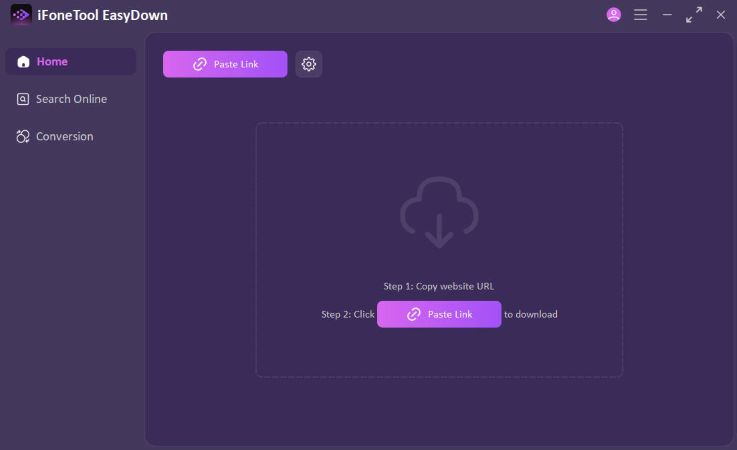
- Step 1: Copy the YouTube link. Open EasyDown and click the Paste Link button.
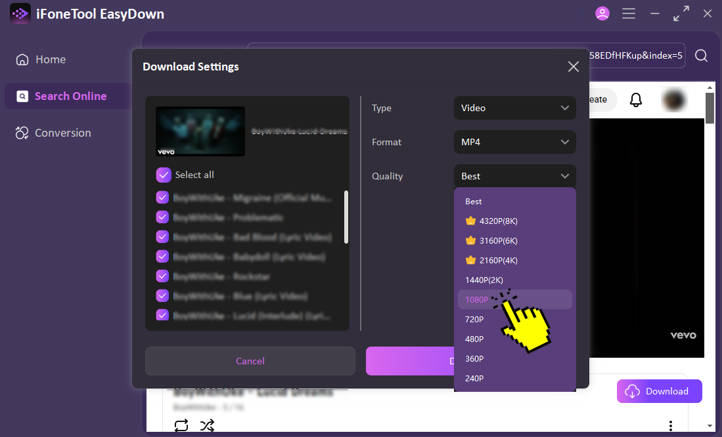
- Step 2: In the Download Settings popup, select 1080p under Quality, then click the Download button.
- Step 3: Go to the Home tab and open the Downloaded section to find your YouTube video saved in 1080p MP4.
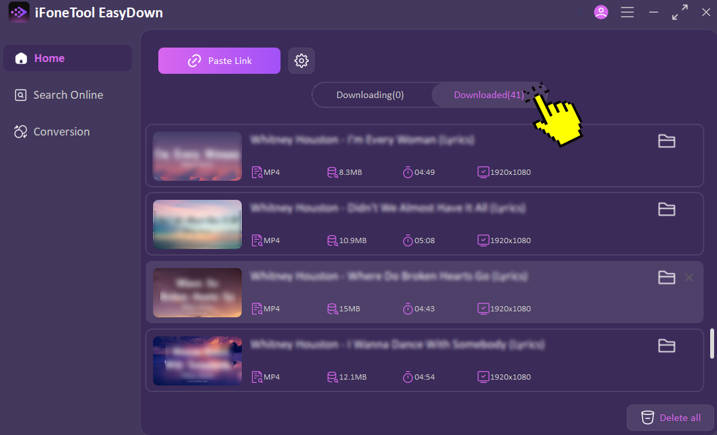
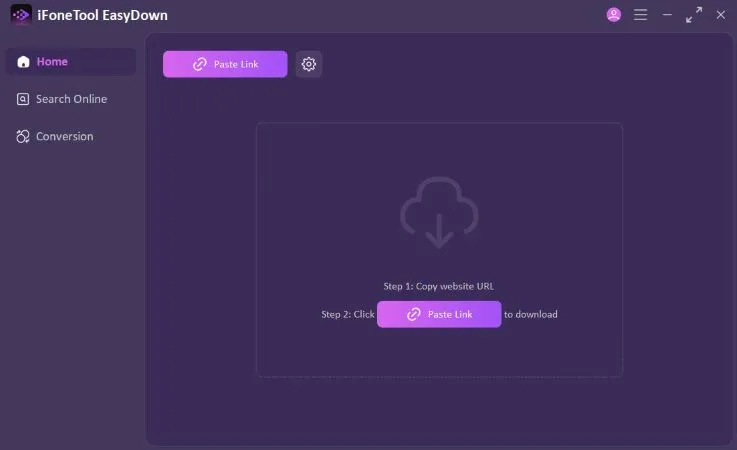

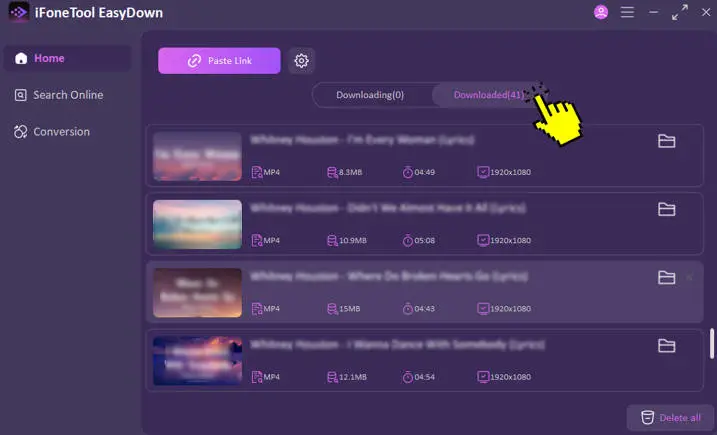
With just these simple steps, you can easily download any YouTube video in high-quality 1080p MP4. EasyDown also offers a free trial, give it a try and see how smooth the experience really is!
-
Download multiple videos simultaneously—speed up to 5x.
-
Built-in browser lets you watch and save videos at the same time.
-
Automatically removes YouTube's video-start ads for cleaner offline viewing.
-
Fully supports MP3 320kbps, youtube to 1080p mp4, 4K MP4, and more.
-
High compatibility and extremely stable performance.
Desktop tools remain the best method for anyone who downloads frequently or wants the best quality.
How to Download YouTube to MP4 1080p Online
Best for: Quick, one-time downloads without installing software.
Online tools are convenient when you only need a simple youtube to mp4 1080p free solution. Just open a webpage, paste the link, choose MP4 1080p, and download.
We have excluded online downloaders with excessive pop-up ads and tested with a 1-hour video. Currently, the most stable online converters include: DLBunny (fast processing, supports MP4 1080p)


Online tools often change their domain due to YouTube's restrictions.
How to Use dlbunny to Download YouTube to MP4 1080p
- Step 1: Open the official dlbunny website and paste the YouTube video link into the URL box.
- Step 2: Click the Download button, then choose the format you want from the parsed list.
- Step 3: In the redirected window, click the three dots at the bottom right of the video and select Download. Then just wait for the download to finish.

-
 No installation needed
 - Works on any device
- Quick for occasional downloads

-
 Ads and redirects
 - Easily blocked or becomes unavailable
- Long videos may fail
- 1080p may not always be available

Tips: If you want to save YouTube videos directly to your phone's gallery for easy offline viewing, you can click here to jump to the mobile section.
How to Download YouTube to MP4 1080p with extension
Best for: Users who want one-click downloads directly under the YouTube video.
Browser extensions let you download videos right on the YouTube page, with no tab switching and no copying links.
It's important to note that due to Chrome Web Store policies, most extensions in the Chrome Store do not support YouTube video downloads.
Because of this, you'll need to use a script-supported extension like Tampermonkey or install the extension through the Edge Add-ons store. A recommended option is Addoncrop (YouTube Video Downloader), which works through a browser script to bypass these restrictions.

How to Use a Browser Extension to Download YouTube to MP4 1080p
- Step 1: Install the Tampermonkey extension in your browser. This is required to run the download script.
- Step 2: Visit the Addoncrop website and install the YouTube Video Downloader script.
- Step 3: After installation, refresh the YouTube video page. You'll see a new download icon appear below the video.
- Step 4: Click the icon and choose the 1080p option. The extension will automatically fetch the video stream, merge the audio, and save it as an MP4 file.
- Easiest method, one click
- No switching tools
- Fast and intuitive
- Chrome Web Store removes most download extensions
- Some require manual installation
- May stop working after YouTube updates
How to download 1080p mp4 YouTube video using yt-dlp
Best for: Advanced users, developers, and automation workflows.
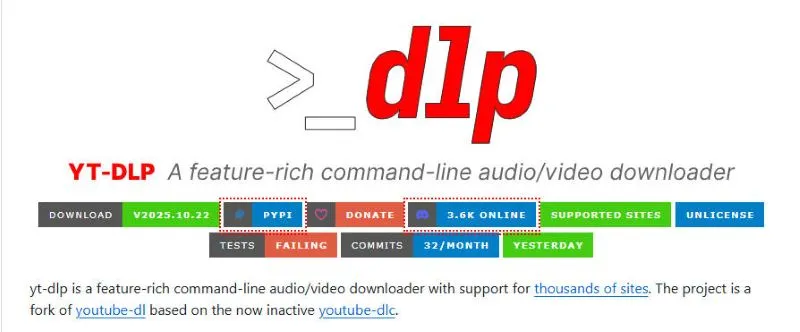
yt-dlp is a powerhouse in the open-source community. It has no graphical interface and runs entirely through command line, but its capabilities are the strongest by far. It handles 1080p and even 4K downloads perfectly, automatically merging the best video and best audio streams.
How to Use yt-dlp download 1080p mp4 YouTube video
- Step 1: Make sure your computer has Python and FFmpeg installed. FFmpeg is required to merge audio and video streams, so this step is essential.
- Step 2: Install yt-dlp via pip (recommended over youtube-dl because it updates more frequently):
pip install yt-dlp - Step 3: Open your command line tool (CMD or Terminal) and run the following command to download a 1080p MP4:
yt-dlp -f "bestvideo[height=1080]+bestaudio/best" --merge-output-format mp4 [YouTube Video URL] - Step 4: Press Enter. yt-dlp will download the highest-quality video and audio tracks and use FFmpeg to merge them into a single 1080p MP4 file.
- Very powerful
- Free and open-source
- Supports playlists, channels, automation
- Handles YouTube restrictions well
- Not beginner-friendly
- Requires command-line usage
How to Download YouTube to MP4 1080p in on Android / iPhone
Best for: Users who want to download videos directly on their phone.
Downloading YouTube videos on mobile is usually more complicated than on desktop, especially on iPhone. Due to iOS file system restrictions, you can't save videos directly from the browser to your Photos app, so you'll need a dedicated app to handle the process.
A recommended option is Vsave Video Downloader, which solves the file-transfer limitations on iPhone and delivers excellent download performance. A one-hour video can be downloaded in about 45 seconds, with stable MP4 1080p quality and no ads, making it extremely convenient for daily use.

How to Use Vsave to Download YouTube Videos on Mobile
- Step 1: Download Vsave Video Downloader from the official website, install the app, and open it.
- Step 2: Copy the YouTube video link and paste it into the search bar inside Vsave.
- Step 3: Tap the download (↓) icon, choose the video quality you want, and click Download.
- Step 4: Once the download finishes, you'll find the saved MP4 video in the File tab.

- Convenient and portable
- Surpport batch Download
- Simple and fast
- Need to download app

Finding the right way to download youtube videos to mp4 1080p depends entirely on your specific needs:
- If you want the highest success rate, batch downloads, and the best 1080p or 4K quality, the desktop software iFoneTool EasyDown is the most reliable and professional choice.
- If you only download occasionally and don't mind ads, the online tool dlbunny is a quick alternative.
- For power users, yt-dlp offers unlimited customization and flexibility.
Stop wasting time on tools that don't work. Choose the method that suits you best and start building your high-quality offline video library today!
You may also like: