



Searching for a reliable way to save music from YouTube to Mac in 2026? As a long-time Mac user and music enthusiast, I’ve spent countless hours trying to save niche tracks, Lo-fi radio streams, and live performances from YouTube into my local library. It’s incredibly frustrating: even with a paid YouTube Premium subscription, you can’t directly save your favorite YouTube songs as MP3s to your Mac, let alone sync them to your Apple Watch.
Every time I tried saving via a browser, I was hit by DRM encryption or format restrictions. After hands-on testing of over 20 mainstream tools and comparing audio quality loss, I’ve locked in a solution that is both safe and effective. In this guide, I’ll show you how to bypass DRM limits, safely extract YouTube music to your Mac, and seamlessly integrate it into your Apple Music ecosystem.

Why Can't You Save YouTube Music (Premium) to Your MacBook?
Beyond being ad-free, the big draw of YouTube Premium is the ability to save videos and music offline on mobile devices. However, as a Mac user, you'll find that YouTube explicitly blocks saving audio files directly to your MacBook. Here is why:
- Mobile-Only Lockdown: Google restricts "Offline Mode" to mobile apps to prevent desktop users from accessing the raw files.
- DRM & Format Barriers: Even if you dig through your browser cache to find a file, it’s usually encrypted. These files won't open in Apple Music or any other standard player.
- No Native macOS App: YouTube hasn't released a native macOS client that supports file exports.
Because of these hurdles, you can't export music from YouTube official channels. But with the right professional tools, you can still make YouTube to MP3 downloads possible.
How to Safely Extract Music from YouTube on Mac
To bypass DRM, the most reliable method is using a dedicated desktop downloader. Unlike online converters, which are often riddled with malicious pop-up ads and prone to crashing during large transfers, desktop software offers significantly better speed and security.
After comparing various options, my top recommendation is EasyDown Music Downloader. It’s a powerful video and audio downloader specifically optimized for the macOS architecture. It doesn't just bypass YouTube's encryption; it preserves the original high-fidelity audio.
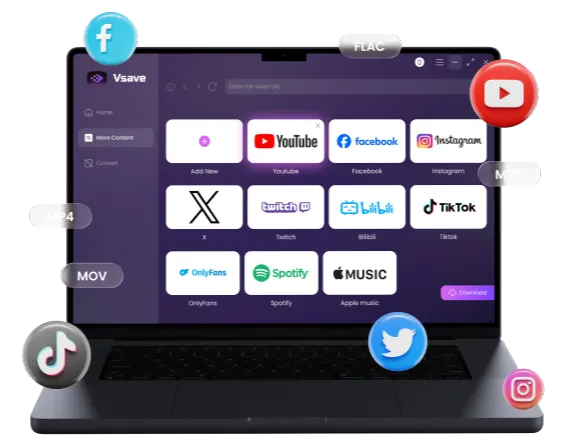
Quickly capture high-resolution YouTube music and convert them into any format you need.
 Free Download
  Free Download
 How It Stacks Up: EasyDown vs. Online Converters
| Feature | Online Free Tools | EasyDown |
|---|---|---|
| Batch Processing | Not supported | Handles 1,000+ files in 1 click |
| Stability | Browsers often freeze | Resumes interrupted tasks automatically |
| Quality | Compressed to save bandwidth | Extracts original high-quality audio |
| No Ads | Aggressive, risky ads | 100% Clean |
| Metadata | Often loses info | Grabs HD covers & ID3 tags |
How to Convert YouTube Music to MP3 on Mac Using EasyDown
- Step 1: Download EasyDown. Download and install EasyDown by clicking the button below.
- Step 2: Copy the Link. Find your favorite playlist or song on YouTube or YouTube Music and copy the URL from your browser. Then Open EasyDown. It automatically detects your clipboard—just click "Paste Link."
- Step 3: Choose Your Format. Select MP3 (320kbps) or AAC. This ensures a premium listening experience on your MacBook speakers or AirPods.
- Step 4: One-Click Download. Hit "Download." You’ll notice it’s up to 10x faster than web-based converters.


I personally recommend AAC (M4A). It offers better high-frequency detail than MP3 at the same file size and is the native format for the Apple ecosystem.

Once the download is complete, you can easily locate the file by clicking the folder icon in the “Downloaded” tab. EasyDown’s default download path is /Users/ your username/Videos/iFoneTool EasyDown/Download, but you can change it anytime by clicking the settings button on the Home tab.
-
All-in-One Support: Extract video or audio from over 1,000 sites with full 4K and 320kbps support.
-
Built for Modern Macs: Fully compatible with macOS Sequoia and optimized for M1, M2, and M3 chips.

Searching for more options to save music from YouTube to Mac?
If you want to compare different applications before making a choice, we highly recommend reading our expert review of the 👉7 Best Mac Free YouTube to MP3 Converter Desktop Tools. This guide will help you find the most efficient software to save YouTube music to Mac securely
How to Transfer Your Songs to Apple Music
Downloading the file is only the first half of the process. To make these songs feel like part of your official collection, you need to import them correctly. Following these steps to integrate them into your Apple ecosystem:
- Locate your files in the EasyDown output folder.
- Open the Music app on your Mac.
- Go to File > Import, or simply drag and drop the files directly into the window.
- Multi-Device Sync: As long as you have "Sync Library" enabled, these songs will automatically appear on your iPhone, iPad, and Apple Watch. You can find detailed setup instructions in Apple’s Sync Library documentation.
Right-click a song and select "Get Info" to manually edit album art and metadata for a professional look.
If you run into any issues during import, check Apple’s guide on official Apple Support guide on importing music.
FAQs about Downloading Music From Youtube to Mac
Below, we will answer some of the most frequently asked questions about downloading music from youtube to mac.
Q1: Is it legal to convert YouTube to MP3 for free?
As long as you are saving for Personal Use (offline listening), it is generally considered "Fair Use". However, you should not use it for commercial purposes.
Q2: Can I import these files into Spotify?
Absolutely. In the Spotify Mac app settings, toggle on "Local Files" and add the folder path where EasyDown saves your music.
Q3: Will my downloaded songs disappear?
Unlike the YouTube Music app, where offline songs become unplayable if your subscription lapses, files downloaded via EasyDown are permanent MP3s. They are yours to keep forever, regardless of your membership status.

This guide covers how to bypass YouTube's DRM restrictions to safely extract music to your Mac and integrate it perfectly with Apple Music. EasyDown is the most trusted tool for this job because it maintains raw audio quality. Start building a collection that’s truly yours today.
You may also like: